CM5 based piCorePlayer
Introduction
Around 2009 I started to stream audio, first with a Logitech Squeezebox Duet and later upgraded to a Touch. The Logitech Media Server I had loaded onto my Synology DS207+ NAS. Furthermore, in 2019 I built a replacement for my Squeezebox Touch streamer using a Raspberry Pi. The device has served me well, but there are a couple of annoyances, so the time came to upgrade.
- With a classic Raspberry Pi in a housing with a display, the power cable comes out the top.
- The power connection is through an old-fashioned micro-USB port.
- With a DAC the analog outputs also come out on top. Solvable with angled RCA adapters, but still not nice.
- The old(er) Raspberry Pi supports 802.11n, but newer Wi-Fi exists. My router supports 802.11ac, 11ax, and 11be (Wi-Fi 7).
- In my case the Raspberry Pi sometimes shows a yellow lightning symbol on the screen, which signals an undervoltage situation (a power supply issue).
- I once had to update piCorePlayer by putting a new image on the SD card, but the card was buried inside the device. It must be disassembled to get to the SD card.
Before we dive into the details of the new piCorePlayer build, let me explain about the history and the entire ecosystem. It all started with Slim Devices just before the turn of the millennium (the year 2000). A couple of revolutionary music players were launched. A user support forum was created at https://forums.slimdevices.com/. In 2006 the company was acquired by Logitech, and some new players were launched. To everybody’s surprise, Logitech decided to discontinue the Squeezebox products in 2012. In view of the success of SONOS (founded in 2002 and launching its first products in 2004), I would say Logitech missed a golden opportunity. At any rate, we are all grateful that Logitech decided to continue supporting the products by paying for upkeep of the forum as well as the MySqueezebox service.
P.S. In modern ’lingo’ the player is what we call a streamer these days. Please be reminded, Slim Devices was among the first in the market, these things (category of devices) didn’t have a name.
Lyrion Music Server
In 2024 Logitech announced that it would discontinue support for the products. We appreciate that Logitech continued the support for otherwise discontinued products for as long as they did (around 10 years after they were discontinued). Meanwhile, a community has grown strong. The Logitech Media Server (LMS) was maintained primarily as an open-source project, maintained by mherger (Michael Herger), using GitHub. The Logitech name had to go, and instead it was rebranded as the Lyrion Music Server. There is no replacement of the MySqueezebox service. The Lyrion Music Server is also maintained as an open-source project on GitHub.
Just to be clear, LMS (Lyrion Music Server) is a piece of software that you run within your LAN (local area network), and this software manages your music collection. It can run on an old PC (Windows, Mac, or Linux); or on a NAS (Network Attached Storage) device; or within a minicomputer like, for example, the Raspberry Pi.
The server streams music to ‘players,’ which originally would be one of many devices sold by Slim Devices and later Logitech (for example, a Squeezebox). Although many are still functional, the community needs alternatives. For this purpose, a piece of software named Squeezelite was created, which essentially emulates the hardware, but in software. Squeezelite was the brainchild of a forum user by the name Triode (Adrian Smith), but he is no longer active. The software is now primarily maintained on GitHub by ralphy (Ralph Irving).
Players are often based on a Raspberry Pi loaded with an OS named piCorePlayer, and later I will show you how to build one. piCorePlayer is well documented, and you can read how piCorePlayer can be set up as a player, a server, or both. It is maintained on GitHub by a group of maintainers, primarily paul-, Steen, ralphy, and Greg (Erskine). You can run Squeezelite within a different OS if you like; some people use Raspbian, others use Daphile, and so on. Recently many other devices come with Squeezelite built in, like, for example, Wiim Pro players (which means Lyrion Music Server will discover these devices on your network).
You manage the music system through a web browser. In 2018 a skin named Material was launched, maintained on GitHub by cpd73 (Craig Drummond), which brought a modern graphical user interface to the ecosystem. The Material skin is installed as an LMS plugin.

In principle, the player does not need to have any user interface, in which case it is a headless device. If you are using piCorePlayer installed on a Raspberry Pi (always), then optionally this can be equipped with a display, and you then install an extension to piCorePlayer called Jivelite. But Jivelite is also an optional user interface for Windows, Mac, and Linux. Jivelite was created by Triode (Adrian Smith) and is now maintained on GitHub by ralphy (Ralph Irving).
An update to Jivelite is the jivelite-vis (visualizer) maintained by daab (Blaise Dias) on GitHub in the generic Jivelite resources as well as the piCorePlayer-specific Jivelite resources. The actual visualizers live in a 3rd repo. This adds support for a number of visualizers of the music, including classic VU-meters and spectrum analyzers. These days I install the “vis” fork of JiveLite. This newer implementation supports numerous displays and their various display resolutions and is a requirement if you wish to use the newer Raspberry Pi Touch Display 2. The forum support is found here for jivelite-vis-release and here for piCorePlayer. (I’m sorry this is a bit complicated.)
If you are using your MS Windows PC to control your player, then one option could be to install the Squeeze-LX app on your PC. There are several ways to do so, but one way is to open the Microsoft Store and search for Squeeze-LX or simply Lyrion (installing this way should keep the software updated automatically). Squeeze-LX is simply an embedded browser-dedicated application. Squeeze-LX is maintained by rgdawson (Greg Dawson) on GitHub. (I am not sure this is where Greg maintains this software, it seems inactive.)
There are many other apps; some are dedicated for the Apple iOS (search for Lyrion and see your options in the app store), and others for Android. For my Android phone I use an app named Squeezer, maintained by Kurt Aaholst, accessible on GitHub here.
I briefly mentioned the Material skin plugin for LMS, but there are many other plugins. You can see an overview in the Plugins directory.
Radio Now Playing is among the plugins I would like to highlight. I am personally not a frequent user since I do not listen to the radio a lot, but I know that when the forum users voted for a new ‘device,’ the top hit was a replacement of the Squeezebox Radio, which makes me think there are many users of the Squeezeboxes that utilize the radio playback feature, maybe even as their primary source. Radio Now Playing supports an enormous number of Internet radio channels. The plugin and the setup of radios is maintaned by Paul Webster, AFAIK not on GitHub. If you find a radio that is missing, I think Paul will add it for you with short notice; he isn’t afraid of adding more radio channels. In my case, when I select a channel and play the music, cover art is supported, showing a graphic image of the music that is currently being played.
I use the TIDAL plugin. This isn’t a fully integrated management of your TIDAL account and all. You need a TIDAL license and account management on, e.g., your PC, but the plugin will tap into your music library, and you can play anything that’s in your TIDAL library, i.e., playback works seamlessly. In a similar fashion there is a Spotify plugin, a Qobuz plugin, a Deezer plugin, etc. There’s also a YouTube plugin to stream the music from YouTube to your stereo (maintained by philippe44 on GitHub).
Another plugin that I enjoy a lot is the Music and Artist Information plugin. When playing music, you can pull information about the artist, the album you’re playing, as well as lyrics so you can read the words that the musician is singing. All of which has always impressed my friends. I think the artist and album information is pulled from Wikipedia, but the plugin might also be looking elsewhere. The plugin is maintained by Michael Herger on GitHub.
Some plugins are frequently updated. Some web apps, like Squeeze-LX, let you update these LMS plugins from the user interface and restart the server software (to activate the update).

The Lyrion Music Server is community-driven, and if you wish to contribute, either by engaging in the forum, writing a plugin, or maybe translating the text in the user interface to your language, the community is welcoming any such effort to contribute. For example, I have updated the Danish language translation. Here you can see the current coverage of translations. Much of this requires that you 1) create your own GitHub account, then 2) fork what you wish to modify, and 3) send a merge request to the maintainer.
I mentioned that the MySqueezebox service isn’t supported anymore. This service allowed you to utilize your players without installing LMS locally. Besides, it managed the radio offerings and plugins for your players. You can still install player plugins. For example, updating the Squeezebox firmware for the Touch, Radio, and Controller is possible through a plugin that you must install on LMS, and then you ask LMS and your player to negotiate and organize the update.
LMS Summary
I think that was a lot of information, so let me summarize by displaying my own setup.
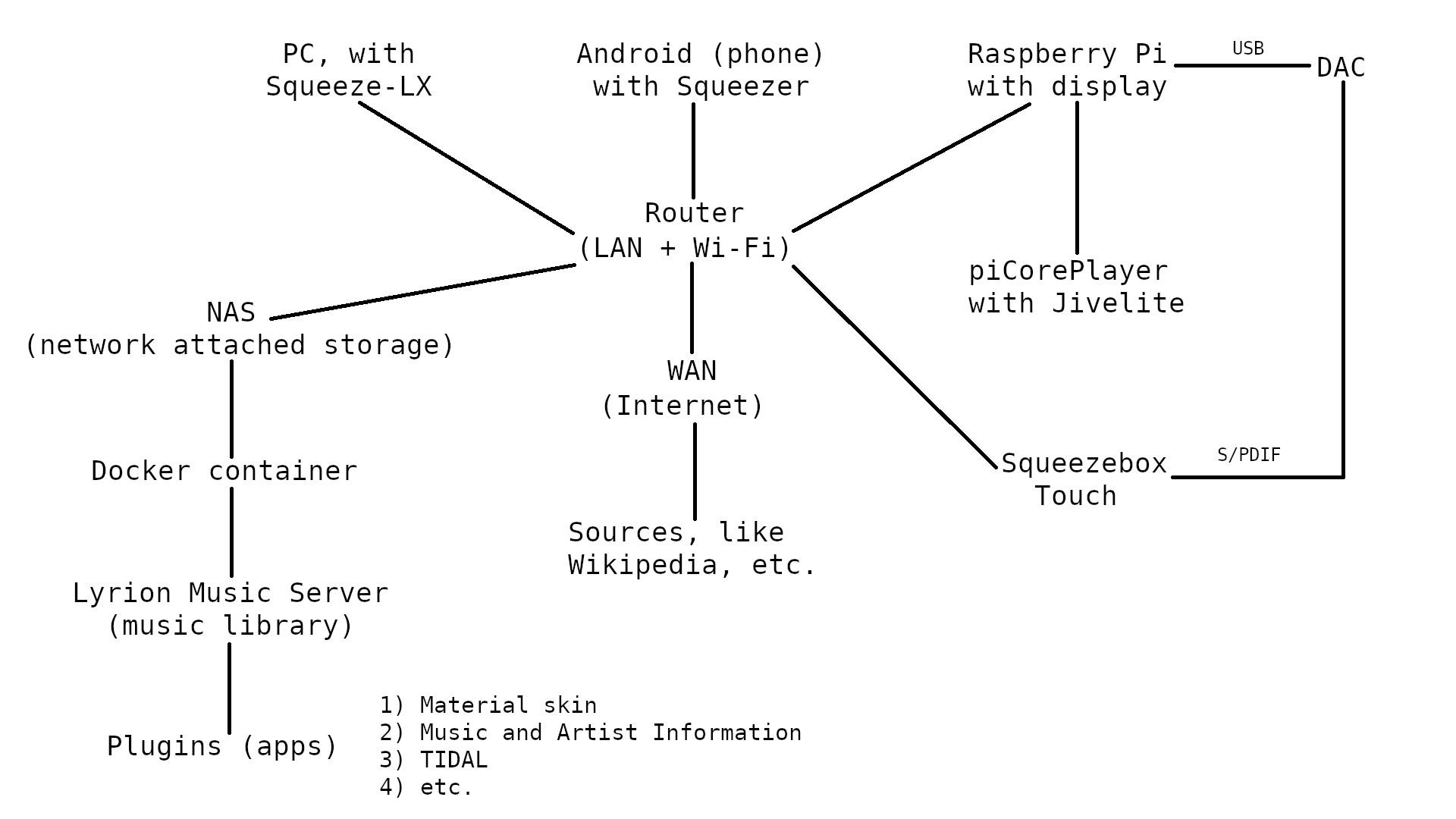
Hardware
I researched what to buy. The nice features of combining the compute module with the IO board is:
- It collects all the inputs on the back side of the box
- There is a push button built in, suitable for gentle shutdown
- It includes the feature of a CR2032 battery holder for the RTC (real time clock) so that your system is on-time, even before connecting to an NTP server (using Network Time Protocol)
- The SD card slot is readily accessible on the rear side of the device
- It shields the electronics in the metal case, and with the antenna we have a good, strong Wi-Fi and Bluetooth signal
- It includes an M.2 slot for adding a NVMe SSD. You can prepare booting piCorePlayer from this disk, or running LMS and having your music library available here, locally
- There’s a little bit of room for installing a HAT, like for support of PoE, a DAC, or possibly a small battery UPS
- It uses a modern USB-C port for powering the device
- It supports the 27 Watt power supply (the official Raspberry Pi 5 PSU) so that I do not run into power limitations again
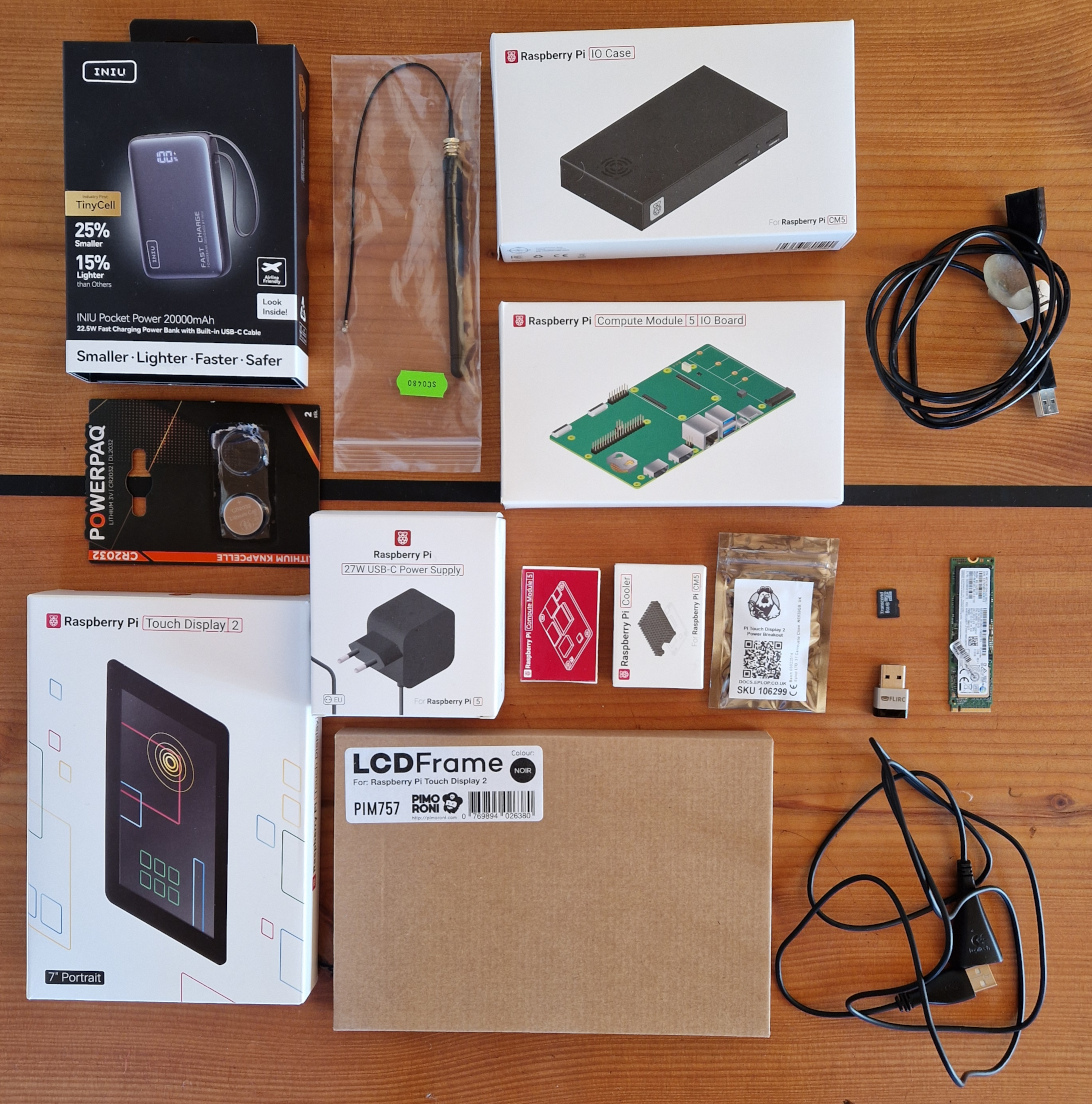
Several of these features could require installing one or several HATs, but here they are included with the IO board.
Hardware list (bill of material):
- CM5108000 - Raspberry Pi Compute Module 5 - WiFi - 8GB RAM - 0GB Storage (Lite)
- Raspberry Pi Compute Module 5 IO Board
- Raspberry Pi Compute Module 5 Passive Cooler Heatsink
- Raspberry Pi Compute Module 5 IO Case. Get Version 2 where the fan is to the side
- Official Raspberry Pi 27W USB-C Power Supply - EU - 5V 5A - Black
- Raspberry Pi Compute Module 4/5 Antenna Kit
- A micro SD card (in this case an 8 GB disk that I fetched out of a Garmin GPS, but 1 GB would be plenty enough)
- Optional: A jumper cap (2.54 mm pitch) to short J2 is required to enable the PWR_Button
- Optional: M.2 SSD NVMe (in this case a 512 GB disk that I fetched out of an old laptop)
- Optional: FLIRC USB device for receiving IR signals and convert to keyboard signals (for this we need a USB cable)
- Optional: a CR2032 battery (ideally rechargeable)
I recommend not installing the jumper for the PWR_Button just yet. Without it, the Raspberry Pi will boot as soon as you plug it in. This will work just fine for now.
With the above materials, you can build a headless version. Note that I bought the ’lite’ version without any eMMC storage, which means this one will boot from the SD card. I believe, if you (accidentally) purchased a version with eMMC storage, then you can disable booting from this with a pin configuration on the IO board (using a jumper cap). Note that I bought the 8 GB RAM version, which is overkill; 4 GB should be plenty (but for other projects, running a different OS, who knows).
This implies that you can buy the CM5, IO Board, IO case, Antenna kit, Passive Cooler and Power Supply in a package. See the Development Kit for details. You’ll need a jumper cap (jumper bridge) for J2 to instruct the system to not boot on the internal eMMC storage. The package doesn’t come with one. In a pinch you could wrap a piece of copper wire around the pins, but that’s obviously not a permanent solution.
- Official Raspberry Pi 7" Touch Display 2
- Pibow Frame for Raspberry Pi Touch Display 2
- USB Power Breakout for Raspberry Pi Touch Display 2 (for this we need a USB cable)
- Two jumper caps (2.54 mm pitch) to short J6 is required to enable the CAM/DISP 1 port
With the above additional materials you can add a display (the official one). I chose a simple frame for the display from Pimoroni, but other (good) options exist. Since the IO case supports cabling to the display, but no power outlet for the display, I have included a USB power breakout. For this we will need a USB cable (otherwise the display cables cannot reach).
- Power bank
In the above picture I also include my travel power bank (top left). This model can supply more than 22 Watt. It has a cable built in for the device as well as a port for charging the battery. When all this is hooked up, it should be safe to play around with LMS. Ideally I had an UPS installed in the HAT of the IO board, but I could not find a suitable one.
In the picture (right side), you see two USB-A male-to-female extension cords. These are the types of USB cables needed.
If you wish to power the device over Ethernet, I recommend the Waveshare module, since it is designed to fit the CM5 IO Board, connects directly with a couple of PoE pins on the IO Board, and fits inside the IO case. I haven’t tried this myself, but I am eyeballing this (i.e., use this advice at your own risk).
It’s fairly easy to put the hardware together, and with prior experience, it takes about 10-15 minutes. For a novice like myself, including documenting my process and taking photos, reserve 45 minutes. See below about software installation.
For buying Raspberry Pi equipment, there seem to be a number of different standard resellers, like RS Components (Radio Shack) as well as Farnell (element14), that are active resellers worldwide, but also alternatives like Pimoroni and The Pi Hut are worth taking a look at.
The purchase cost, including shipping cost, is a grand total of 2372.93 Danish Kroner (about 318 EUR, or 372 USD). This is considerably lower cost than the last build (because no DAC is included). The cost is without the parts found readily available (SD card, SSD storage, USB cables, power bank).
Assembly
The hardware came with all the necessary accessories (screws, silicone pads, etc.); for example, no additional standoffs are needed. You just need the tools, some suitable PH1 and PH2 (Phillips head) screwdrivers.
I studied the manual and a YouTube video about assembly, but none came up with exactly the combination that we are working with here. Instead, here is a list of how to proceed with this specific hardware (the headless one, i.e., for a start without a display):
- Install the antenna to the CM5 module. It is a small connector, requires a push, and there is very little room once the passive cooler is mounted. No need to mount the antenna in the case yet.
- Mount the CM5 with the passive cooler (first remove liner paper from the silicone pads), align the holes for the screws, and ensure the cutout in the passive cooler goes where the antenna is mounted.
- Mount the CM5 onto the IO Board. The passive cooler comes with screws and spacers, which must be used.
- Slide the CR2032 battery into the holder on the IO board.
- Mount the IO Board assembly onto the bottom of the case.
- Mount the antenna to the case. Ensure suitable routing of the antenna wire. (See photo below.)
- Mount the silicone pad above the SD card port. I put the SD card into the slot before pushing the silicone pad in place.
- Plug Ethernet cable into the port.
- Plug the power cord in. The system boots (wait ca. 30-35 seconds).
- If everything works, screw mount the top of the case (fan removed), closing the box. (I recommend waiting to do this until you see the player on your network.)
About the assembly order, I found it difficult to mount the antenna to the CM5 board after fitting the passive cooler. You will notice it can be done, but it is difficult. There is not enough space for your fingers to apply the necessary pressure. Hence, push-mount the antenna to the CM5 board first.
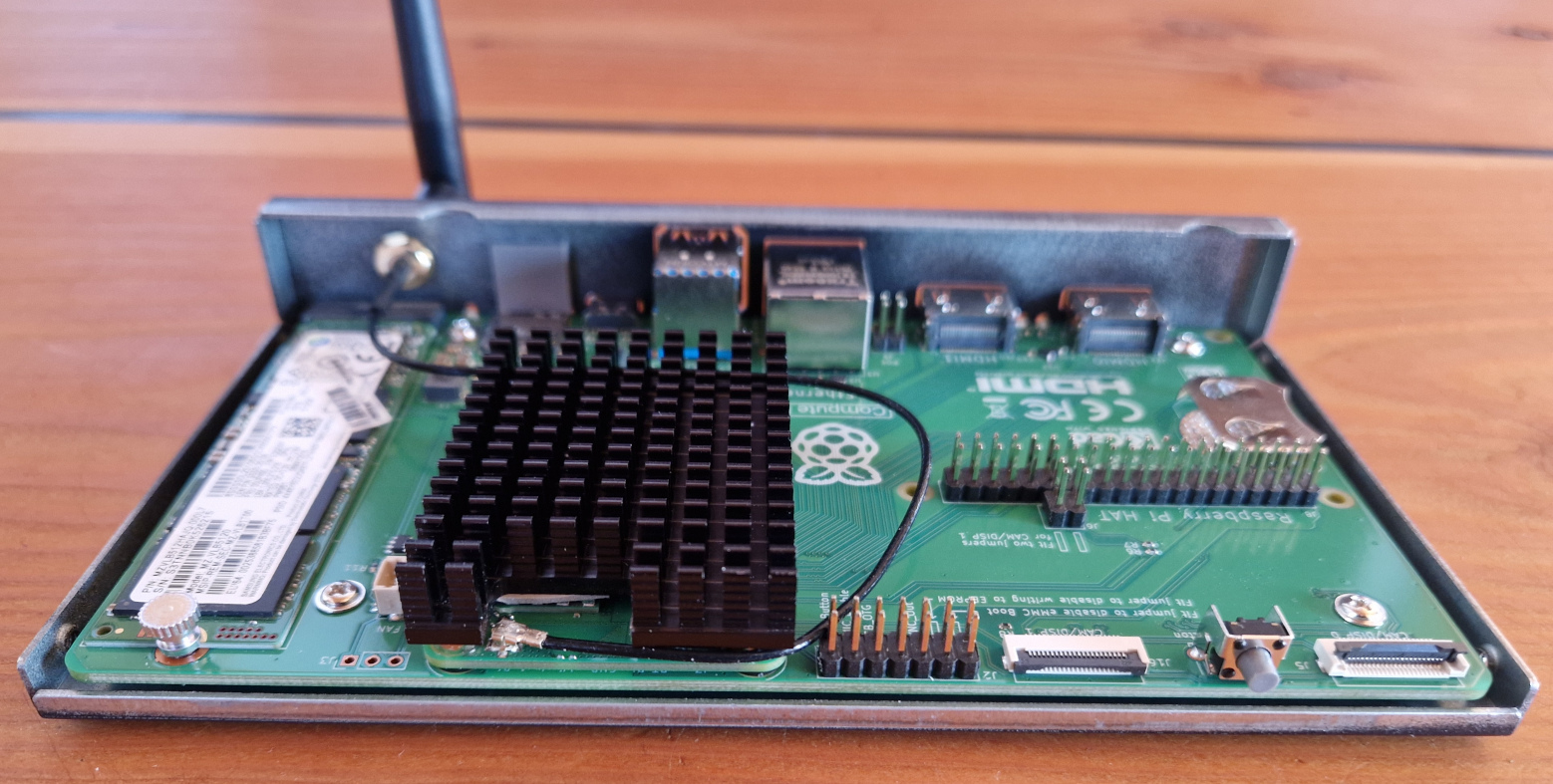
Second, install the passive cooler onto the CM5 board such that the silicone pads meet the chips on the board and the screw holes are exactly aligned. Then fit the assembly to the IO board, pushing the CM5 100-pin connector in place. The cooler includes screw threads, screws, and spacers for mounting this from the back side of the IO board. Therefore, this must be your second (and third) step. Remember to slide the plastic spacers in place before using the screws. Using the spacers that came with the passive cooler, you avoid stressing (bending) the PCB.
The IO case comes equipped with a fan mounted onto the top part, but I unmounted this, since I am building an audio device and we don’t like fan noise. I think you could leave it in the case, and it will fit above the SSD (left of the passive cooler heatsink), but my thinking is that without the fan, air can circulate more easily. Save the fan and the four screws in a small bag and put it in the cardboard box for the IO case for future use.
That was the hardware part (headless, without a display). Then comes the software setup.
Software installation
The software I plan to use requires very little space. In principle you could do with a 256 or 512 MB card, but I think you cannot buy such small SD cards anymore; 4 GB seems to be the minimum. If you plan to try out something else, e.g., Raspbian (possibly NOOBS for beginners), you’ll need an 8 GB micro-SD card. Feel free to make a different choice.
Software list:
- Raspberry Pi Imager
- piCorePlayer 11.1.0 64-bit (with JiveLite GUI, installed through the piCorePlayer web interface)
Note: In this text, if you see some words in boldface, then it means you shall locate these words somewhere in the software GUI.
In the Raspberry Pi Imager software, after selecting the Raspberry Pi 5 device, you must scroll down a bit and choose a Media player OS (piCorePlayer is on the list); alternatively, you can select to Use custom image. My computer has an SD card reader built in, but if yours doesn’t, then you’ll need a card reader/writer.
If you have other piCorePlayers in your network, consider turning them off. This way you avoid the conflict that several players might show up with the same name.
Put the SD card into the back of the device and power up / boot the device. It will take 30-35 seconds. Load http://pcp.local in your browser and follow what the piCorePlayer wizard is prompting for. Be aware that we are using http, not https (the communication is not encrypted).
Software configuration
Here is a quick-start to-do list:
- Locate the pCP IP address… or alternatively, just load http://pcp.local into a browser.
- Configure pCP (piCorePlayer prompts you); first you need to select a password (for the ’tc’ user). Make one of your own and save it somewhere (for future reference).
- Check for updates (yes, why not).
- Host name: pCP5 (for example, if you change the name, then you must reload, e.g., http://pcp5.local)
- … more options (piCorePlayer continues to prompt you)
- Resize: I chose to resize the partition to 2000 MB. It should be plenty for add-on packages and running an instance of LMS. For a start, piCorePlayer is using just 300 MB.
- When prompted for NTP (Network Time Protocol), specify your location and enable this feature
- Configure for your Wi-Fi (SSID, password, and country code)
- Unplug the device.
- Unplug the Ethernet cable.
- Plug the power back in. Booting the device. Finding Wi-Fi.
- Load pcp.local (or pcp5.local) into your browser and continue your configuration.
Sometimes the pcp.local shortcut doesn’t work, and instead you must find the IP address of the player. Normally your router interface can list the users on your network, alternatively use an Ethernet analyzer, like Advanced IP scanner.
Practical information about how to access the system from the command line and modify config files: If you know the IP address of the device, you can login with SSH. Windows 11 supports SSH on the command line. Just type:
ssh tc@ip-address
Here you must exchange “ip-address” for your actual numbers, for example 192.168.0.123. The default password for tc is (or used to be) piCore. Nowadays the setup wizard for piCorePlayer asks for a password, and I hope that you took notice and wrote it down somewhere, because the password must be used for logging into the system as tc.
You’re on a Linux machine, so commands are not exactly like in Microsoft Windows. You’ll start in the /home/tc (“root”) directory and to back down, for example, to the /etc directory, which contains some Editable Text Configuration files, you type:
cd /etc
Now you can type:
vi
…to open up the VI text editor. For people unfamiliar with VI, it can be a bit of a challenge, so here’s a crash course. First of all, VI is a visual overlay on top of the “ex” editor language, so VI has two modes - you start in normal (command) mode, then you can change to input mode where you actually write in the text file. In command mode you can move your cursor around, e.g. with the arrow keys. To insert text at the cursor position, type “i” or alternatively at the end of the line, type “A” (append) and start typing. When done, push the ESCape button and you’re back in command mode, where you can write the content to file, type “:w” and push the enter button. To quit the editor, type “:q” and push the enter button. That’s the ultra-short and super-simple introduction to VI, which, if you care to learn, has enormous power under the hood.
For editing the config.txt file you’ll need to mount the part that contains this file. Remember, piCoreplayer keeps this partition unmounted after reboot for a reason, to avoid corruption of data if power suddenly disappears (the device can be shut down brutally without problems). After editing the config.txt file, you should reboot the device (at least ‘umount’ the partition where config.txt is located).
mount /mnt/mmcblk0p1
cd /mnt/mmcblk0p1
vi config.txt
Configuring Squeezelite
I was able to connect to piCorePlayer from LMS (Lyrion Music Server), but music will not play until you have configured Squeezelite. It works, straight out of the box, put together and without any software configuration. The ‘magic’ happens because Squeezelite takes care to broadcast the player such that LMS can find it. The Lyrion Music Server automatically found the piCorePlayer (and all other players were unplugged). piCorePlayer is by default “headless,” and the display isn’t needed. The “head” part is taken care of by installing JiveLite.
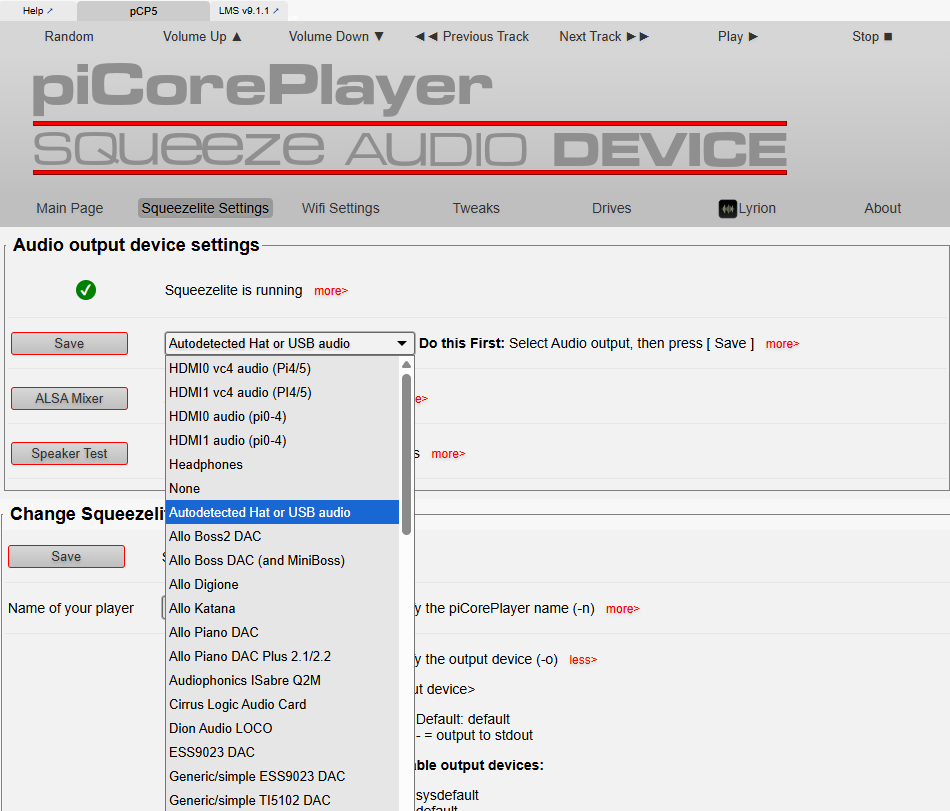
If LMS doesn’t find your piCorePlayer, it is probably because Squeezelite wasn’t started. Load the GUI (enter http://ip-address in your browser), and right at the top of the Main Page, under the Main piCorePlayer functions, select Restart. This will restart Squeezelite; this should work.
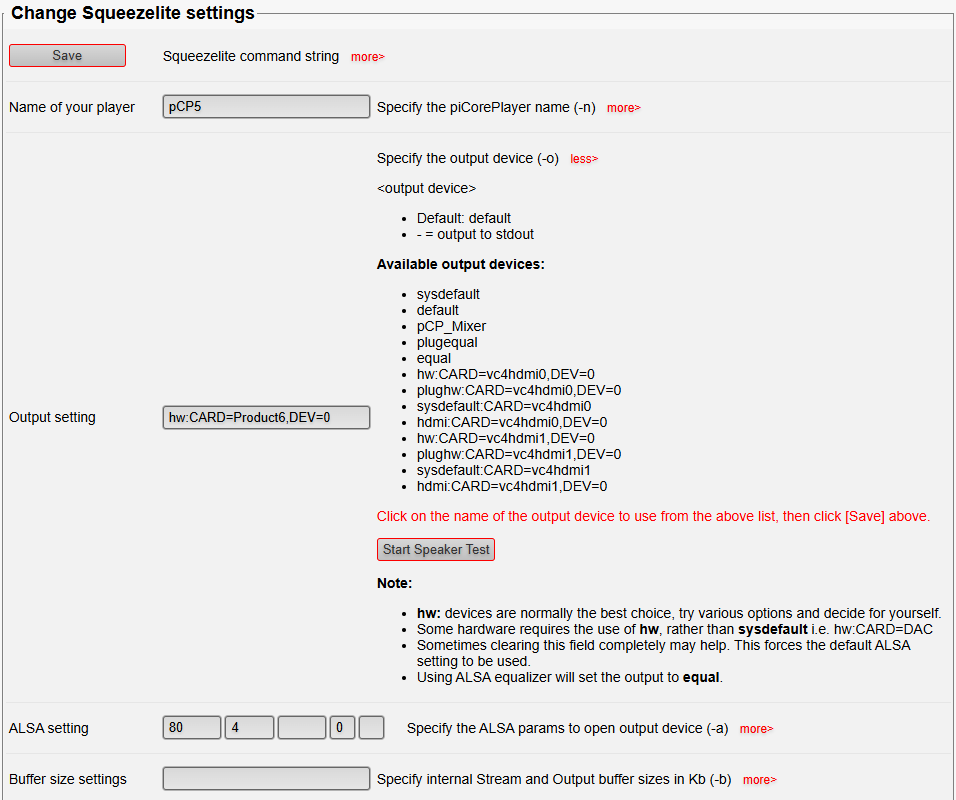
In piCorePlayer Squeezelite settings there’s a pair of controls for Audio output device settings and in the Audio output dropdown box you need to select how you wish to output the audio. In some Raspberry Pi implementations, an analog headphone (mini-jack) output is available, but not so with the CM5 and IO Board. If you use USB output (like me) to an external DAC, select Autodetected Hat or USB audio and push the Save button.
Further down the Squeezelite Settings menu, locate the section Change Squeezelite settings, locate Output setting. For my DAC I had to write hw:CARD=Product6,DEV=0. Your DAC could be different. Click the more hotlink and piCorePlayer will show you a list of common configurations. Click on a text string and it is pasted into the text box. Experimenting with the options is typically the quickest way to find out what works for you. Further down the Change Squeezelite settings section, locate and push the Save button.
- Squeezelite Upsampling -
The Raspberry Pi and piCorePlayer offers the feature to upsample, with specification of the filter, which is available because Squeezelite includes the SoX library and essentially bypasses the oversampling filter in the DAC. A CM5 has much more processing power than a DAC chip and can do a much better job. This only makes good sense at 44.1 kHz and 48 kHz material, whereas with high-res music the potential artefacts of the upsample filter is inaudible and I would just let the DAC do its job.
Here in the Change Squeezelite settings section is also where you can configure digital upsampling using SoX. Although I have a good DAC, I have chosen to let SoX upsample my music. You can play around with this and listen, see if your system sounds better when letting the power of the CM5 and SoX do the upsampling for you. SoX is a high quality tool, which can utilize 28 bits for upsampling. Here are my settings, just for inspiration:
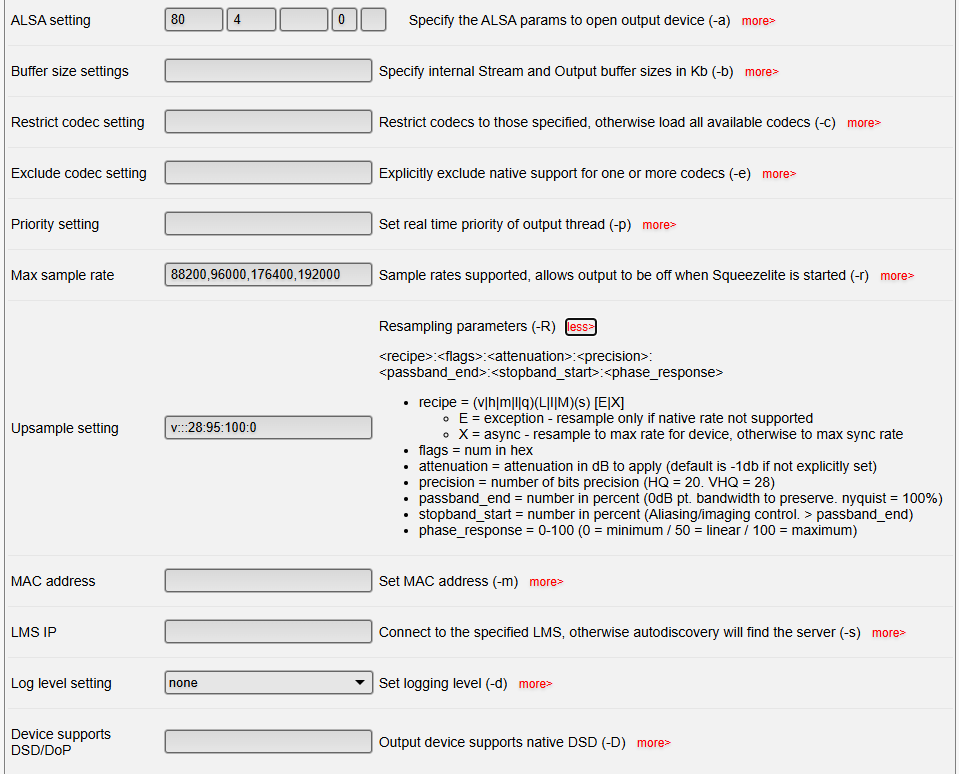
The string v:::28:95:10:0 means:
- v means very high quality algorithm (the most CPU intensive)
- ::: (the empty space between each colon) means no flags were applied
- 28 means we’re upconverting to 28 bit, giving extra precision, which reduces rounding errors
- 95 means the upsample filter starts at 95% the sample rate
- 100 means the upsample filter cut frequency is at 100% the sample rate (this prevents aliasing to occur)
- 0 means the filter is minimum phase (50 would be linear phase)
This is a reasonably steep filter without being aggressive. For example, if the incoming signal is 44.1 kHz, the Nyquist frequency is at 22.05 kHz, and the filter starts at 95% = 20.1 kHz. Likewise the filter is at its full effect at 22.05 kHz. With these settings the response is flat to 20 kHz. The last number is a phase setting, between 0 and 100, where 50 is linear phase and 0 is minimum phase. You can choose any in-between value you like. Using SoX you can decide how you wish to upsample and what interpolation algorithm should be used (not letting the DAC decide for you).
Under Max sample rate, all acceptable sample rates for the output device are listed. There is no mention of 44100 or 48000, so these are upsampled (in this case to 176400 and 192000). This means that in my setup, the DAC doesn’t receive anything lower than 88.2 kHz.
It’s cool that in piCorePlayer, Squeezelite Settings, you can specify different strings for upsampling, and push the SAVE button which shuts down Squeezelite and then Squeezelite is restarted, the music stops for 2 seconds, and now the song continues playing where it stopped, so you can hear the change.
I honestly do not hear the big difference, but I listen for high-frequency content (e.g., triangles) and discern if the ringing sound is natural (has a natural decay). I think modern DACs are good at their job. For older DACs I used to hear a bigger difference.
Note: One of the flags in the upsample settings tells SoX to reduce the output, and the default is to reduce the output by 1 dB. This is for allowance of inter-sample overs in the upsample interpolation. It also implies that the signal is not bit-perfect anymore. I don’t mind and I have left this flag unchanged (the 1 dB reduction works well for me), but for some, this is a big no-no. You can choose a different value.
This brings me to the point that there seems to be overwhelmingly many ways to regulate the volume control, and not all of them are equally good. First the LMS server (on the NAS) can be used. It doesn’t boost, only reduce, but uses floating point for the processing and should be disabled. This can be done in the LMS settings so that the output level is always 100%. When disabled, you do not have the option to control the volume from LMS. If you do this, there’s no risk of accidentally decreasing the sound quality. Keep the software volume control, if you wish to use an app to control the volume with software (for convenience) - and in this case if volume = 100% the sound quality is not degraded and you’re OK.
Another volume control is found in the Squeezelite client, which is part of piCorePlayer. You can also have some SoX commands take care of volume level as mentioned previously (fixed, I believe), not easy to use on-the-fly. Last volume regulation is in your audio amplifier (if you have a preamp and/or integrated amplifier, which I do). In total some 3-4 different volume controls can be utilized.
Tip: how to install a package
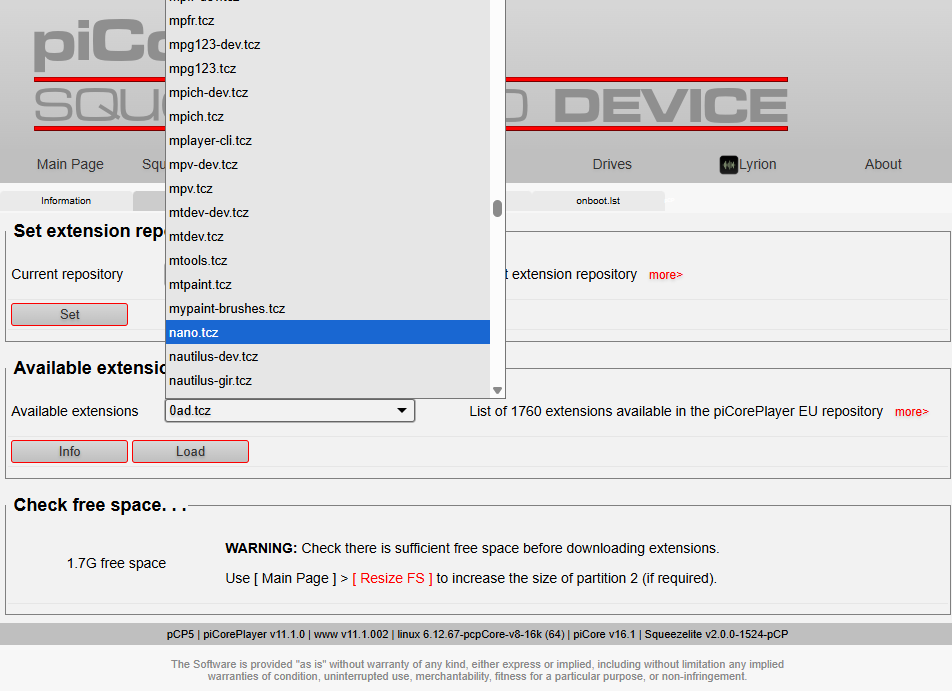
This is an example showing how to install add-on packages. If the VI editor is not your cup of tea (coffee?), then you can install a different editor. A classic choice is the nano editor. In the piCorePlayer GUI, on the Main Page, go to the Additional functions section and click the Extensions button. Then piCorePlayer loads information about available extensions from the Internet. At the top you have a menu (Information, Available, Installed, …). Click Available and among Available extensions, select the nano.tcz package. Push the Load button. Now nano is installed (available from the command line once you SSH into your device).
I have learned to use the basic elements of VI and the rest of this text will continue to use the VI editor, but for many the nano editor will be more intuitive.
Antenna kit setup
The CM5 module comes with an internal on-board (PCB) antenna, which is chosen by default. To change this such that you use the external antenna, you must edit the config.txt file (there is no GUI for this option in piCorePlayer).
Somewhere down the config.txt you must add the line: “dtparam=ant2”, where dtparam stands for Device Tree Parameter. This is what it looks like in my config.txt:
dtparam=i2c\_arm=on
dtparam=i2s=on
dtparam=spi=on
dtparam=ant2
Note how I have chosen to insert this boot option before the audio section. The “ant2” option comes right after configuring i2s and similar stuff. If you write “ant1” then the internal antenna is used (default, hence chosen if the dtparam is omitted).
Using the VI editor, here is what you need to do:
ssh tc@ip-address    (replace ip-address with the IP address of your piCorePlayer), enter password
mount /mnt/mmcblk0p1
cd /mnt/mmcblk0p1
vi config.txt        (scroll to near the bottom of the file)
A                    (type shift-a to append to end of line, VI goes to insert mode)
ENTER                (new line)
dtparam=ant2         (write this text)
ESC                  (Press the Escape button, VI goes back to command mode)
:wq                  (write file and quit VI)
In our hardware assembly we proposed to keep the top off the IO case. If you have come this far, and you have Wi-Fi working, then you can put the top on the case, and Wi-Fi with the antenna working should continue to work. But, if you plan to install a display, please don’t screw everything together just yet.
Assembling and configuring the display
I decided to buy the Pibow frame from Pimoroni. If you did too, please see their assembly instructions. Another option could be, for example, the Waveshare case. The Waveshare case cannot stand on its own, but I like that it has built-in screw nuts. I’m just providing some options for you to consider.
The signal cable between the display and the IO Board is mounted to the Display; feed it through the case, then into the connector closer to the middle (DISP 1) with the contacts pointing down (black side up).
Powering the display, I am using the USB extension cable plugged into the backside of the Raspberry Pi and at the other end, the USB Power Breakout that I purchased from The Pi Hut. The power cord (thin wires) comes with the Display; plug one end into the Display and the other into the Breakout PCB (it should be foolproof since it fits only one way). Pay attention: the red wire is plus (+) and the black wire is minus (-). Since you are using the USB port only for power, it is feasible to use a USB charger instead.
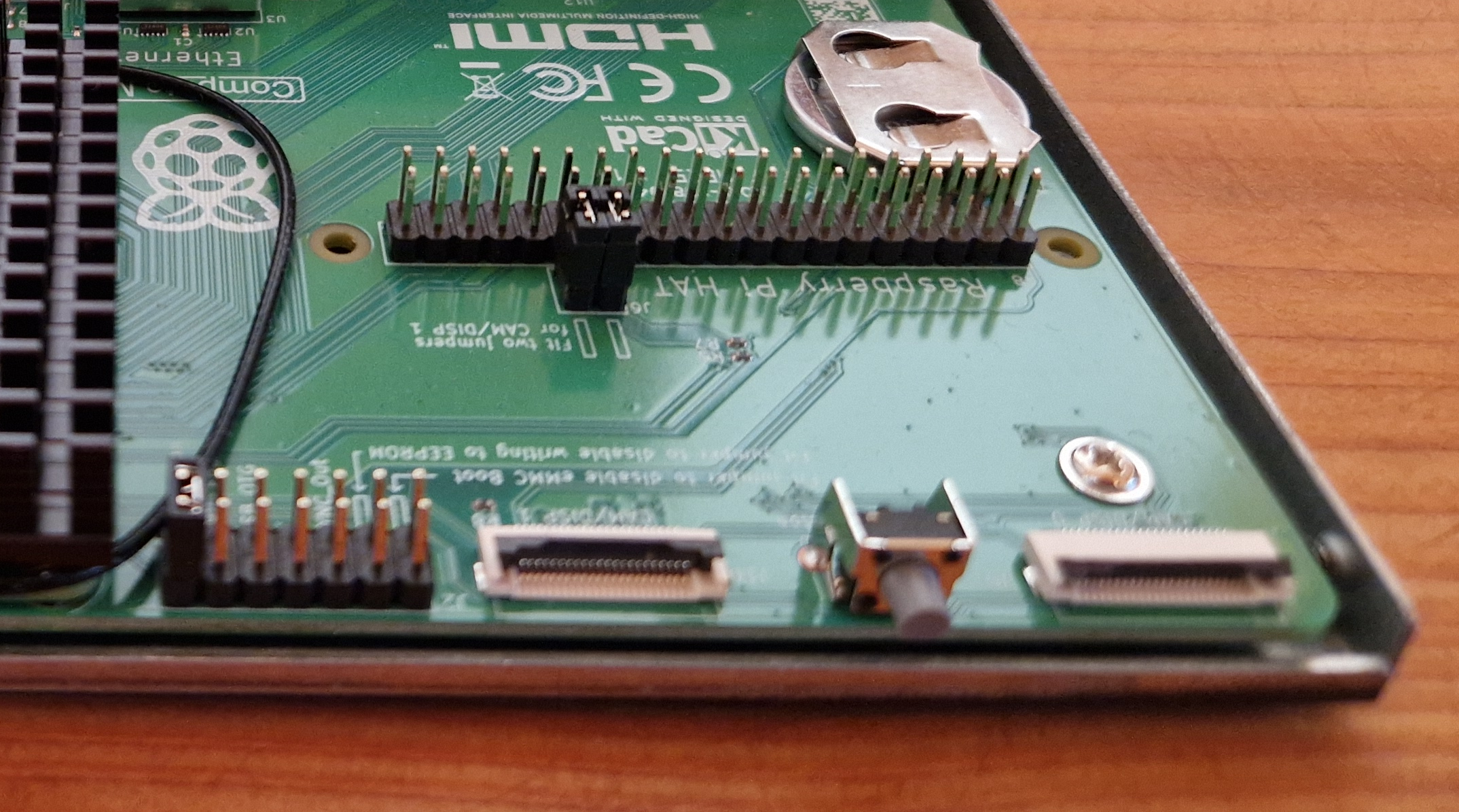
The special situation of a CM5 with an IO Board is not well documented. There are two ports for camera/display and if we choose to use DISP 0 on the board, we do not need jumpers, but I wasn’t successful in getting this to work with piCorePlayer. I use two jumper caps for J6, see photo below:
I think piCorePlayer is predetermined to use DISP 1, maybe because some Raspberry Pis don’t have two MPI DSI/CSI connectors. While you have piCorePlayer up and running, go to the user interface (load it into a browser) and select the Tweaks menu. Scroll down to Jivelite Setup. Then:
- Set VC4 = Yes
- Set Rotation = 270 (display in horizontal mode; could in your case also be 90 degrees, but the ribbon cable will be more difficult to hook up)
- Click the Jivelite Vis installation button. (The newer Touch Display 2 requires VC4 and the Vis version of Jivelite.)
Once you click Jivelite Vis, piCorePlayer will ask to reboot. After rebooting, connect to the device with SSH and modify config.txt. Somewhere we need to add the line “dtoverlay=vc4-kms-dsi-ili9881-7inch” to config.txt. The end result should be something like this:
# Screen rotation 0 => 0 degrees, 1 => Clockwise, 2 => 180 degrees, 3 => CCW
lcd\_rotate=3
display\_hdmi\_rotate=1
disable\_fw\_kms\_setup=0

dtoverlay=vc4-kms-dsi-ili9881-7inch
dtoverlay=vc4-kms-v3d
As you can see from above excerpt from config.txt, the new dtoverlay line is surrounded by other display configuration lines. By the way, the lcd_rotate command ensures that the text while booting the device is oriented correctly (horizontally, i.e., readable) on the screen.
The dtoverlay command initiates a Device Tree Overlay, i.e., a driver for the screen is initialized. Without specifying MPI DSI/CSI connector 0 explicitly, this picks connector 1. Here is what you do on the command line and in the VI editor:
ssh tc@ip-address    (replace ip-address with the IP address of your piCorePlayer), enter password
mount /mnt/mmcblk0p1
cd /mnt/mmcblk0p1
vi config.txt        (scroll to near the bottom of the file)
A                    (type shift-a to append to end of line, VI goes into insert mode)
ENTER                (push the enter button, go to a new line)
dtoverlay=vc4-kms-dsi-ili9881-7inch    (write this text)
ESC                  (push the Escape button such that the VI editor goes into command mode)
:wq (ENTER)
exit (ENTER)         (to exit the SSH connection)
Reboot piCorePlayer again (You can type ‘pcp br’ on the command line, if you like). Now the screen should show some output. This concludes the hardware setup with a display.
Most of what you need to configure with piCorePlayer doesn’t require you to enter the command line. The GUI is quite good, but I didn’t find a way to add this line, and then the command line comes in handy.
JiveLite is installed from the piCorePlayer web GUI. It’s as simple as going to Tweaks and pushing the install button. You have two options; the older Jivelite and the newer Jivelite Vis (which is needed for the support of various screen resolutions as well as supporting the VC4 graphics driver).
Using the touch display might not work at first, and that’s because you need to calibrate the touch screen. You do this from the piCorePlayer GUI; in the Tweaks menu, scroll down to the Jivelite Setup - Visualizer section, and click the Calibrate button. Follow the instructions on the display.
After installing JiveLite and calibrating the display, select your language, and then you may select a Skin - an option could be to pick the Grid Skin (the other option is to use the Joggler skin). You can go back and change this whenever you wish.
If everything works for you, then it is a good time now to put the top onto the bottom of the IO case and close it up, and screw it together. The exception being if you wish to enable the power button—this requires fiddling with the J2 jumper.
In the piCorePlayer Tweaks menu under the pCP Kernel Tweaks section you may also play with Advanced Overclock functionality (or underclocking) your Raspberry Pi. This was more relevant with older versions of the Raspberry Pi. Since this assembly uses a CM5, I haven’t found a good reason to do so. To exit this page, just go to the Main Page menu.
While we are looking at the Kerne Tweaks, locate CPU Isolation. We may as well insert 3 and push the Save button, since this is recommended. Upon saving, piCorePlayer will reboot. Hereafter you might have to manually restart Squeezelite (go to Main Page and at the top, locate the Restart button).
In the piCorePlayer Tweaks menu under the pCP System Tweaks section, locate HDMI power. I have disabled HDMI power, since I don’t need it (the display is communicating through the MPI DSI/CSI port). You can disable Wi-Fi in the piCorePlayer web-interface (and Bluetooth is disabled by default).
This is what the setup looks like in the end:
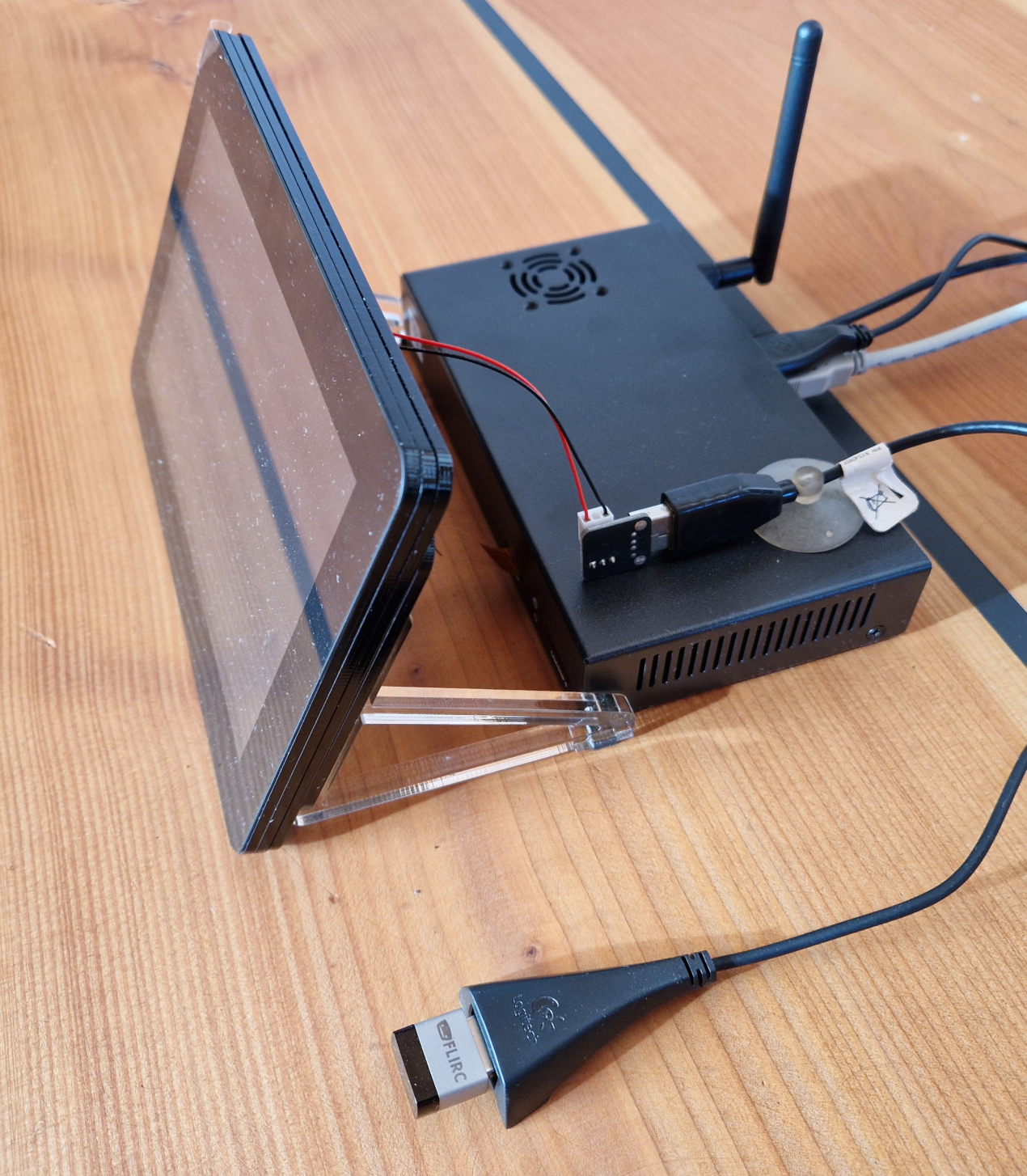
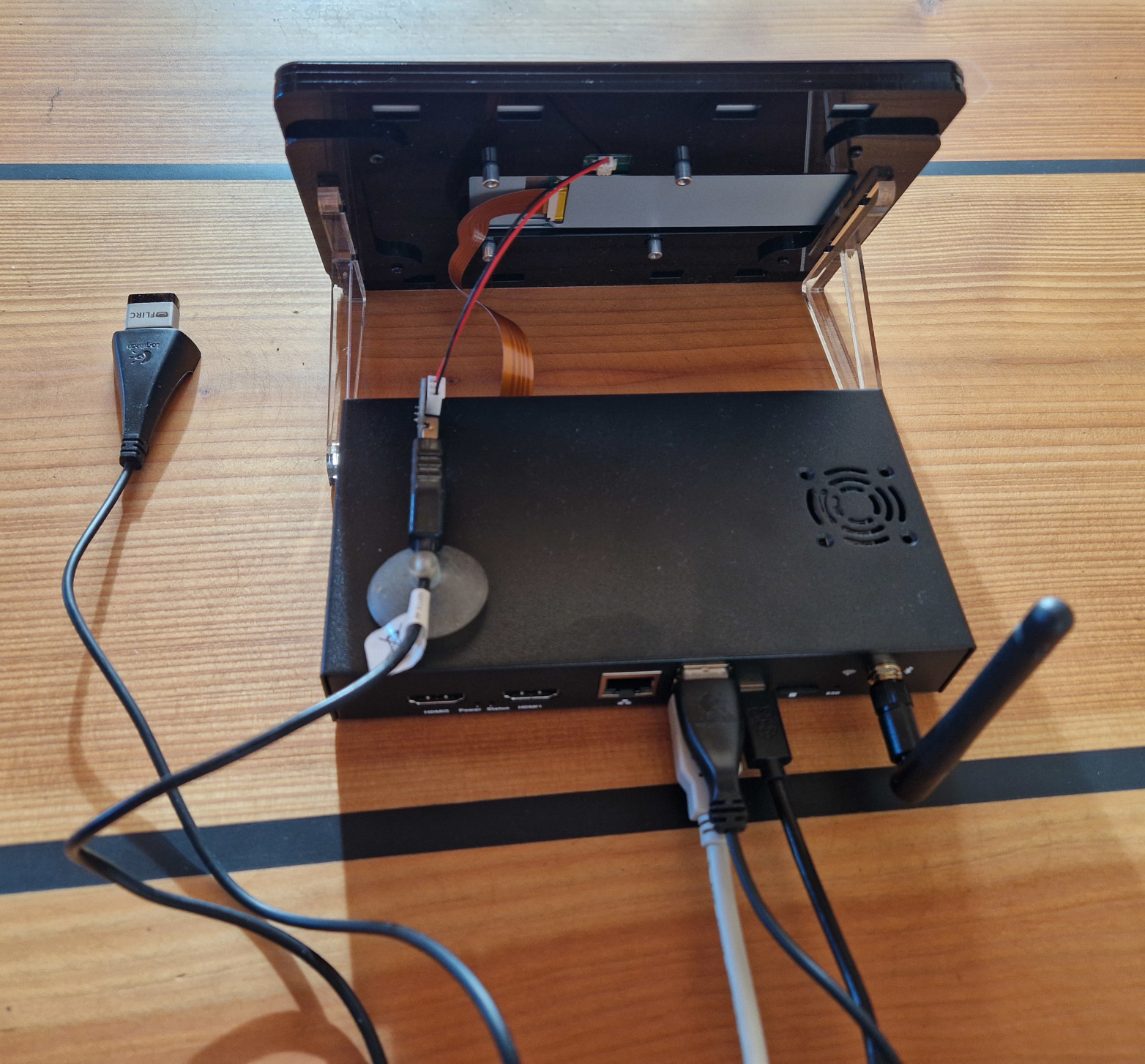
Here you see the disadvantage of the setup, namely that there are a lot of wires, and the display cables are just hanging there. I am contemplating drilling a couple of 2 mm holes in the legs angling the display and then have some longer screws go through the legs into the IO case. This way, at least, the two components (case and display) will be connected. I think M3 x 10 mm panhead (DIN 7985) in black color would be suitable, and if they have Philips PH2, then it’s compatible with the normal screws for the IO case, but PH1 is also OK (used for other screws during assembly).
Configuring your player in LMS
You may configure some of your player settings in LMS. Load LMS into your browser. In the piCorePlayer GUI at the very top, there is a hot-link that opens up LMS, alternatively, typically you can find LMS on port 9000 (http://ip-address:9000), go to Settings, and in the second tab (Player) select your player (pCP5). You get the following options:
- Basic Settings
- Additional Browse Modes
- Alarm Clock
- Audio
- Syncronize
Under Audio, under Power On Resume, I have ‘Pause at power off / Resume at power on’.
Under Audio under LAME Quality Level, select 0 (highest quality level) and push the Apply button in the lower right corner. (I think LAME is used for playback of MP3 files). Note: This is configured for each player individually. Since our player uses a CM5, it has plenty of power to run a high-quality MP3-stream conversion, so let’s take advantage of the hardware and do this.
When the album (playlist) is finished playing, I’d like for the device to go to sleep. This is managed on the server side by installing the PowerSave plugin in LMS (TRUE?). After installing, remember to go into LMS plugin Settings and set it up and check the box to Enable it on your piCorePlayer. In other words (a bit surprising to me), it is LMS that instructs your streamer when to go to sleep.
When the player goes to sleep, it initially doesn’t do anything. To have, e.g., the clock show up, in the JiveLite user interface you need to set Settings - Screen - Screensaver and choose what should happen when your player is stopped (I chose digital clock) and when it is off (I chose digital clock ‘black’ background). These two options are similar to the original Logitech Squeezebox Touch player, but feel free to choose another option. To preserve this setting for the future, choose Save Settings to SD card.
The Touch Display 2 is significantly better than the first generation Raspberry Pi Touch Display, and I haven’t proposed to reduce the brightness of the display, but once your player goes into standby and in this case shows the clock with a black background, the screen might be too bright for your situation. From the touchscreen of the device, using the JiveLite interface, head into Settings, then piCorePlayer; you can find screen brightness. Select Backlight Brightness when Powered Off, and select 1 or 2. To preserve this setting for the future, choose Save Settings to SD card.
The clock defaults to AM/PM (UK) settings, but I’m Central European and like a 24-hour clock display. Using the Jivelite interface, head into Screen and locate Date & Time, select Time Format, and select 24 hours.
Summary: First step is to put the micro-SD card into the Raspberry Pi, hook up the Ethernet cable and power it up. Then identify the IP address from a PC and load the web interface from a browser on your PC. In Squeezelite Setting, choose the Audio output that suits you (e.g. USB). Give the Audio Streamer a suitable name to identify it in your LMS (Lyrion Music Server). In the Tweaks menu, select the JiveLite Vis package and install it. Reboot. Then load your LMS (on the NAS) in your web browser and identify your Squeezebox player (default name is pCP, in the past it used to be piCorePlayer).
How to enable the power button
The power button is set up entirely with hardware; it is disabled by default (TRUE?). To enable the functionality, you’ll need a jumper cap to short the two J2 pins closest to the CM5 module. Plug the power to the Raspberry Pi. Then remove the jumper cap. (TRUE?) Since this jumper cap isn’t permanent, using wires to short J2 could work just fine (avoid shorting other pins).
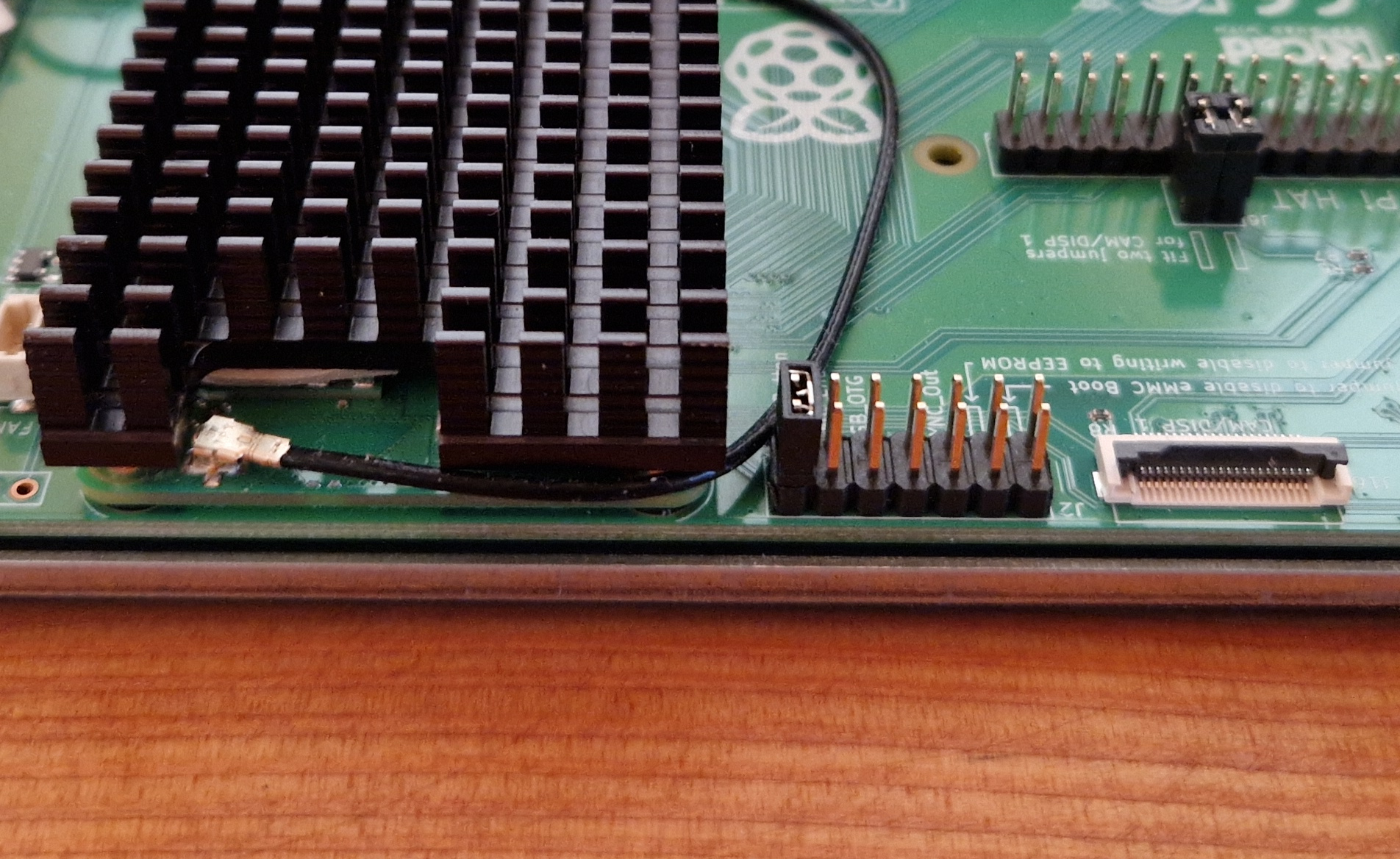
Once this is done, you should observe the following behavior:
- Short press from shutdown. A short press (from a previously shutdown system) boots the system.
- Short press. A short press and piCorePlayer toggle between standby (shows the screen saver) and being awake.
- Long press. A long press forces the system to power down. (Maybe this is not a ‘gentle’ shutdown.)
If this behavior isn’t happening for you, then your power button isn’t working as it was intended.
See the Power button documentation for details.
The power button is said to be easy to wear out; be gentle, use it as needed. Once it breaks, you can then consider replacing it with a better one. My experience is that USB-C ports also wear out if you plug/unplug all the time, and replacing this means you’ll need a new IO Board, or alternatively consider powering with PoE. I prefer to wear out the power button.
How to enable the RTC (real-time clock)
A Raspberry Pi 5 (incl. CM5) comes with a real-time (hardware) clock, and the feature is baked into the kernel of piCorePlayer and loaded by default (no need to install or load anything). You can check by logging into the device with SSH:
ssh@ip-address       (replace ip-address with the address of your device), enter password
dmesg | grep rtc     (lists the boot messages containing rtc)
hwclock              (shows you the current time on the device)
The device may be off by some hours; that’s because the device should run Universal Time. If this is not what you see, then consider updating the hardware clock. If the time on the device (set by NTP) is otherwise correct, then:
date                 (shows you the current system date and time)
sudo hwclock -wu     (set the hardware clock to the current system time, using UTC)
pcp br               (backup and reboot)
See the RTC documentation for details.
The RTC works whether you have a battery installed or not, but with the battery installed, the device can be unplugged and still keep the time running (for up to 3 years, according to the documentation). Without NTP working (e.g., without internet access), the clock remains stable.
It is possible to install a rechargeable CR2032 battery, in which case you can enable charging within the Raspberry Pi configuration. Just remember to plug the device into power now and then (I recommend to let the device be unplugged for maximum a month or so), and the battery will be refreshed, and then the RTC should run for many years (maybe rechargeable for about 1000 cycles). I have used a non-rechargeable CR2032.
Note: The time displayed by Jivelite is pulled from your Lyrion Media Server. The system time in piCorePlayer is set by NTP on boot (if piCorePlayer can reach the internet). There is a fair chance that you will never discover if the hardware clock is correct, or not.
The hardware clock can be utilized for bringing your Raspberry Pi alive at a certain time. In principle this could start piCorePlayer at a determined time and it could play some music, for example waking you up in the morning, but I haven’t played around with this.
How to enable the FLIRC
The FLIRC device translates your IR remote signals into keyboard commands. For configuration of the device:
- Download the flirc-setup software, install it on your computer.
- Start the software.
- Plug the FLIRC device into your USB port on your PC.
- Start ‘programming’ by selecting the type of keyboard, select MEDIA keys.
- Push the buttons on your remote and configure the FLIRC what to do with these commands (play, stop, skip forwards and backwards).
- When you’re done, relocate the FLIRC to your Raspberry Pi computer, it should readily recognize the device as a keyboard. Use an USB extension cable to bring the FLIRC device facing forwards (so you can reach it with your remote control from your seat).
Note: The MEDIA keyboard doesn’t have a pause button. On my remote that’s a separate button, but I have chosen to ignore that. Instead I have configured piCorePlayer to recognize the Play button as a ’toggle’ switch, such that it can mean play and pause (changing the function mapped to a keyboard key). If your remote control is different, this hack may not be needed. For this, you’ll need to login (SSH) to the piCorePlayer device and configure:
ssh tc@ip-address    (replace ip-address with the IP address of your piCorePlayer), enter password
cd .jivelite/userpath-vis/
sudo mkdir jive
cd jive
sudo cp /opt/jivelite/share/jive/jive/InputToActionMap.lua .
sudo vi InputToActionMap.lua
Go down to about line 106, where you find the key definition that we wish to change, [KEY_PLAY]. At the bottom of the VI editor is a line counter. Find [KEY_PLAY] = “play” and move the cursor to the end of the word play.
i                    (this changes VI from command mode to insert mode)
Backspace 4 times    (to delete the play word)
pause                (write 'pause' such that we replace play with pause)
ESC                  (return to command mode in VI)
:wq                  (write to file and quit VI)
Note: We have made a copy of the keyboard mapping file, located in your user-space. The player will find this file before the original file, read it, and configure the keyboard accordingly. If something goes wrong, you can just login and delete this file, and then piCorePlayer will find the original.
To make these changes take effect, restart piCorePlayer, on the command line just type “pcp br” (backup and reboot), your SSH will close down. Alternatively, find the front page of the piCorePlayer GUI and press the Reboot button.
I haven’t configured my pause button on the remote for anything, but if you can configure the FLIRC (plugged into your PC) to recognize this button as a play/pause toggle as well, then it could be purposed.
Note, with many USB devices (Audio output through USB, FLIRC USB, and also powering the display), you may not have enough USB ports on the Raspberry Pi. The Display can instead be powered with a separate USB charger. Any old charger will do (this is how mine is setup).
Note, the FLIRC is unrelated to the LIRC setup in piCorePlayer. Looking at the Tweaks page of piCorePlayer you can find settings for IR remote control. These stay disabled. FLIRC is not LIRC.
How to enable the NVMe SSD
Within the piCorePlayer GUI, go to the Drives menu. Scroll down to the section named Pick from the following detected USB disks to mount and find your SSD (this isn’t an USB disk, but it is listed here anyway). In my case, the SSD came from a Microsoft Windows machine and hence the SSD was NTFS formatted. Either piCorePlayer will need you to install additional packages to support this format, or the drive must be reformated. I chose the latter (installing the additional package is just one click away, but I prefer ext4 for Linux machines).
ssh@ip-address       (replace ip-address with the address of your device), enter password
sudo fdisk -l        (list drives)
sudo mkfs.ext4 /dev/nvme0n1 (convert entire disk to one ext4 partition)
Now the SSD can be managed from within the piCorePlayer GUI. To make the mount permanent you need to edit the fstab table. After this the NVMe drive will be accessible for general storage after every boot. Alternatively, using the command line will mount the drive:
sudo mkdir /mnt/data (create mount point)
sudo mount /dev/nvme0n1 /mnt/data -t ext4    (mount the drive at mount point)
When you reboot the CM5 the NVMe disk will be recognized but it will need to be mounted again unless these things have already been done.
Installing a firewall
This is an example which shows how to install add-on packages.
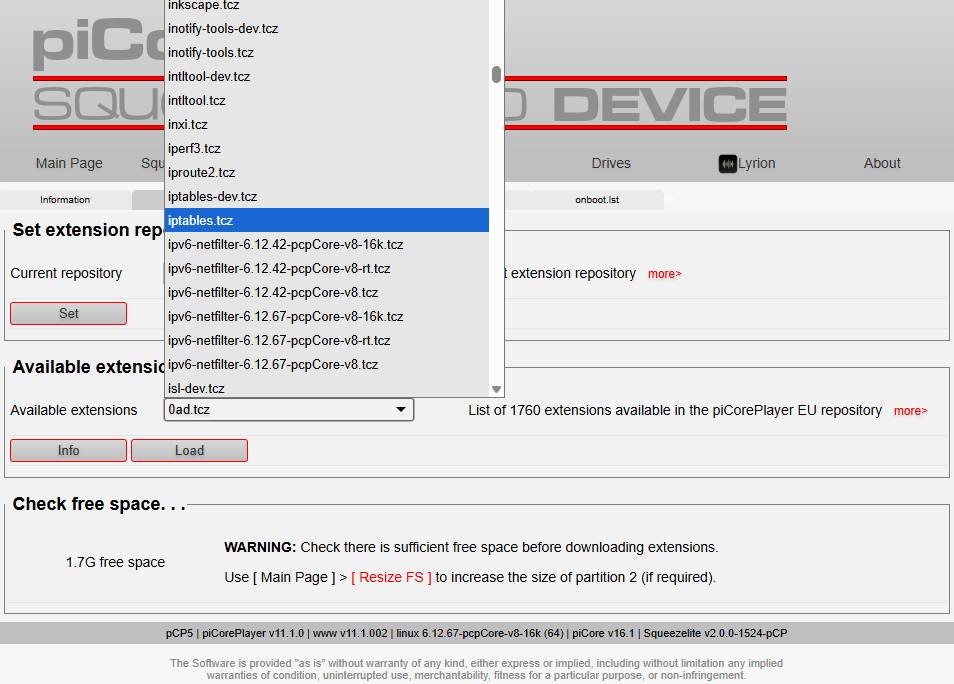
The piCorePlayer is one of these Internet-of-Things, I guess. At least it can fetch packages and update the system, and when expanded with features, additional packages can be downloaded on-the-fly. piCorePlayer is hackable and should be kept on a Local Area Network, not reachable from the internet. An additional security feature could be to install a Firewall on the machine, for example “iptables”. You can install extensions, like iptables, directly from the piCorePlayer web GUI, by loading the GUI into your browser (type the IP address into your browser). On the first page (the Main Page), under Additional functions the Extensions button checks for the package repository (online, on the internet). Find the sub-menu (Information - Available - Installed …) and click the Available menu option. The first section of this menu is Set extension repository. The second section is Available extensions in the piCorePlayer EU repository (for example), here you select among Available extensions the desired package (iptables.tcz). Push the Load button to download and install the package, including a couple of . dependencies which are needed to make iptables work. That’s it, you’ve now learned how to add packages to your piCorePlayer. There are many to choose from. To actually configure the new packages, you’ll have to use the command line and edit the configuration files (as explained above, with the VI editor).
Configuration of iptables: First you must SSH into your machine. SSH is supported on the Microsoft Windows commandline, like mentioned before. Just type:
ssh tc@ip-address - replace ip-address with the address of your piCorePlayer device - you’re then prompted for the password for user ’tc’ on your piCorePlayer cd / - you start in /home/tc - this command brings you to the root of the file system sudo iptables -L -v - should give you an error, no rules created yet. Create rules first: sudo iptables -A INPUT -i lo -j ACCEPT (allow any connection from this device) sudo iptables -A INPUT -s 192.168.0.0/24 -j ACCEPT (allow any connection from the local network) sudo iptables -A INPUT -m pkttype –pkt-type broadcast -j ACCEPT (allow all broadcast traffic) sudo iptables -L -v - now you should get a nice list of rules that have been applied.
In the above list of commands I write the IP address: 192.168.0…, which must be replaced with a valid IP address space for your own network.
Be aware the above iptables commands allows all traffic from any internal IP address so you won’t accidentally block yourself from further accessing the piCorePlayer. It’s almost pointless, but at least I don’t break your system. We didn’t create any Forward or Output filters. Hereafter it’s your job to detail what exactly you wish the firewall to drop and/or reject. Here’s a guide: The Beginner’s Guide to iptables, the Linux Firewall. Finally, don’t forget to save your work to the SD-disk. If you don’t, then your iptables configuration is lost when you power down the device.
If you leave the configuration wide open (as with above initial setup), then you can come back later and with the iptables -L -v command you can see how much traffic is going in and out. Input and outputs will probably show some activity, but the system may not have forwarded a single package, because it’s not in the middle of your network (it’s an endpoint device). Blocking all forwarding (broadcasting) could be helpful in preventing the device from being used by a hacker, but if you wish piCorePlayer to also be a Wireless Access Point, it’s one of the features available in the Wi-Fi Settings, then you should keep this wide open.
Note 2022-10-16: It seems that iptables will be replaced by nftables. What’s the difference?
More information
- Download piCorePlayer
- Burn piCorePlayer onto a SD card
- Setup Wifi without ethernet
- Determine your piCorePlayer IP address
- piCorePlayer built with Raspberry Pi CM5
- Top Of The Line Raspberry Pi Digital Audio Streamer